Skip to the content





























Organizations seek a Two Factor Authentication (2FA) solution while connecting mobile devices to the Skype for Business (Lync) server for two main reasons:
· To prevent workers from connecting unauthorized devices which carry their corporate credentials. This is required to prevent workers from sharing Skype for Business’ resources with others such as family members or friends, and to ensure that only devices which are approved by the organization are connected. By matching the device and user, the organization can limit users to using only corporate devices or specific devices that meet the company’s security requirements.
· Avoid connection to Skype for Business servers by hackers and other unauthorized users who obtained access to the credentials of the Active Directory (AD).
SphereShield is based on a Two Factor Authentication, using the password as something the user knows and the device as something he the user has. In such a case, unauthorized use of the user’s credentials will not be sufficient to connect to Skype for Business without having access to the device itself.
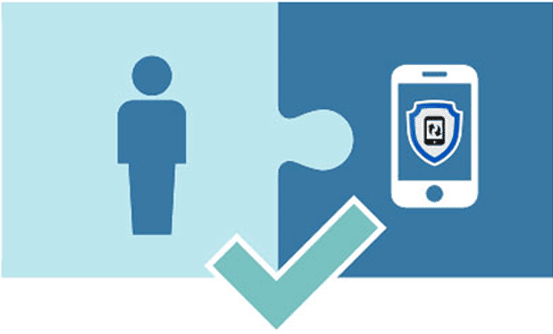
Registering the device adds an authentication factor, allowing the organization to control which devices will obtain permission to connect.
SphereShield offers several approaches for registering and approving mobile devices using the Skype for Business access control module. The registration process is done by using SphereShield Access Portal, a self-service Web portal.
Device Registration Options
Skype for Business Access Control supports the following enrollment options:
SphereShield offers several approaches for registering and approving mobile devices using the Skype for Business access control module. The registration process is done by using SphereShield Access Portal, a self-service Web portal.
Device Registration Options
Skype for Business Access Control supports the following enrollment options:
· Automatic registration – the device is registered when the user connects to Skype for Business for the first time. Once registered, Skype for Business Access Control verifies, during subsequent synchronizations, that the connection is in fact from the registered device. Any attempt to connect from a different device, using the same credentials, will be automatically blocked.
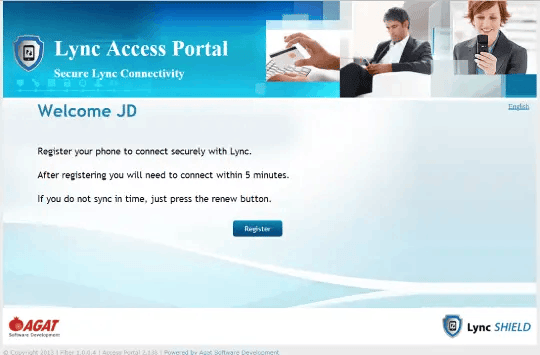
· Two step registration – a tighter security approach which requires users to register first on a dedicated access portal and connect within a short period (defined in the portal configuration). In such a scenario, the user logs into the access portal with his active directory credentials (window authentication) from an internal network PC. After doing so, he is asked to press the register button and to perform a Skype for Business connectivity operation within a limited period defined by the admin (default is 15 minutes). Once the user successfully connects his device, it is registered. From that point on, SphereShield will only allow the current user to connect from the registered device.
· A user can add another device if SphereShield is configured to support multiple devices. SphereShield can also limit the number of devices approved for a user to a specific number.
· Two step registration – a tighter security approach which requires users to register first on a dedicated access portal and connect within a short period (defined in the portal configuration). In such a scenario, the user logs into the access portal with his active directory credentials (window authentication) from an internal network PC. After doing so, he is asked to press the register button and to perform a Skype for Business connectivity operation within a limited period defined by the admin (default is 15 minutes). Once the user successfully connects his device, it is registered. From that point on, SphereShield will only allow the current user to connect from the registered device.
· A user can add another device if SphereShield is configured to support multiple devices. SphereShield can also limit the number of devices approved for a user to a specific number.
Admin manual approval
By using SphereShield’s approach, every device must be approved by the SphereShield admin. In such a case, when the user connects for the first time, the device is registered in the blocked device list. Admin then approves the device manually so that it is authorized and connected to the specific user.